

- choose what anonymous visitors may ask about,
- put the bar and the bubble on your pages, with two HTML tags each,
- check what visitors can and cannot see,
- allow Concatflow in a Content Security Policy.
Before you start
You need an assistant that is published, with its Isolation signed. You also need Node 18 or later, only to serve the pages on your laptop.1. Choose what visitors may ask about
The public door answers anyone, without a login. It only reads the tables you put in its scope, and only tables that hold no customer data.- In the Concatflow dashboard, open your assistant, then Isolation. A table can enter the public scope only if it is marked as a shared reference, visible to all customers: a product catalogue, a price list, your branches.
- Open Doors. Turn the public door on.
- Click Edit the public scope. Tick the shared tables visitors may ask about. Tables holding customer data cannot be ticked: they only go through the per-user door.
- Set Rate per visitor. 60 questions per hour is the default.
2. Allow your origins
In Doors → Allowed origins, add the origin you will test from:http://localhost:8000 and http://127.0.0.1:8000 are two different origins. You add your production origins in step 8.
3. Copy your site token
In Doors, the public door shows its Page code. Copy the site token from it: it starts withst_.
The site token is public. It is meant to sit in your HTML, like a Stripe publishable key. It only opens the public door, from your allowed origins.
4. Put the bar in your hero
Create a folder for the site, and anindex.html in it. Replace st_YOUR_SITE_TOKEN with your token.
index.html
<concatflow-assistant> is written, and fills the width of its container: here, the hero’s 640px. The script can sit at the end of the body. It defines the element when it loads.
placeholderis the text in the empty bar. Set it: the default is in French.accentcolours the bar’s magnifier and focus ring. The colours inside the assistant come from the dashboard’s Appearance tab.theme="light"matches a light site. Without it, the assistant uses the dashboard’s theme.
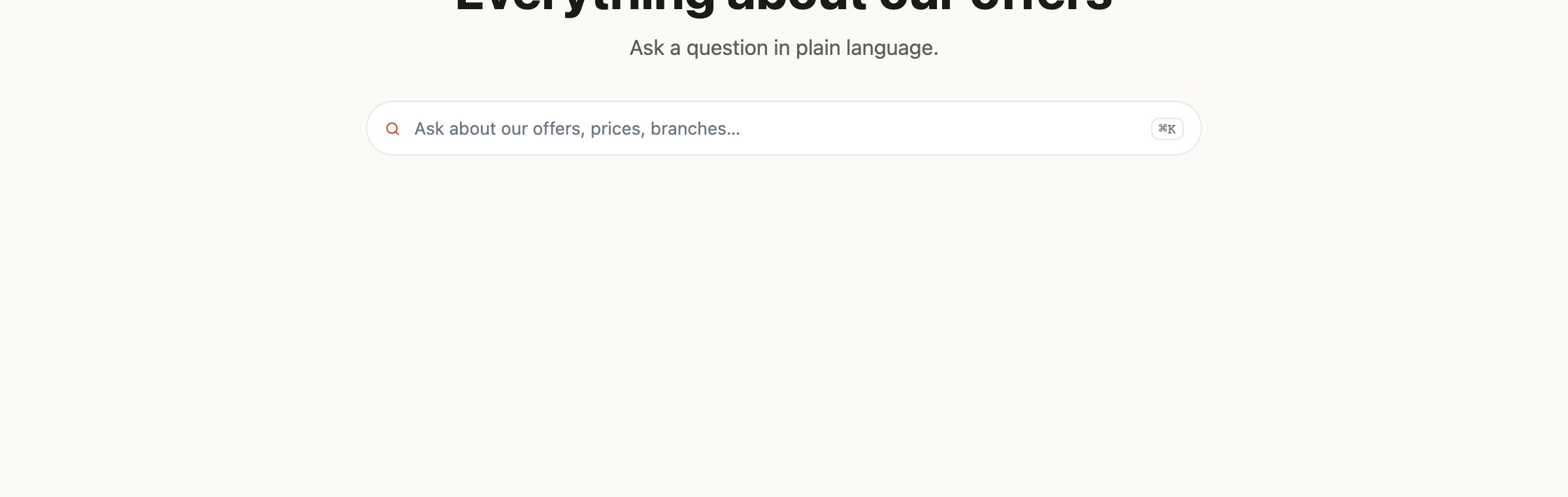
The bar in the hero, with your placeholder and accent.
5. Put the bubble on your other pages
On pages without a natural place for a search field, use the bubble. Leave outlauncher:
pricing.html
6. Run it
From the site’s folder: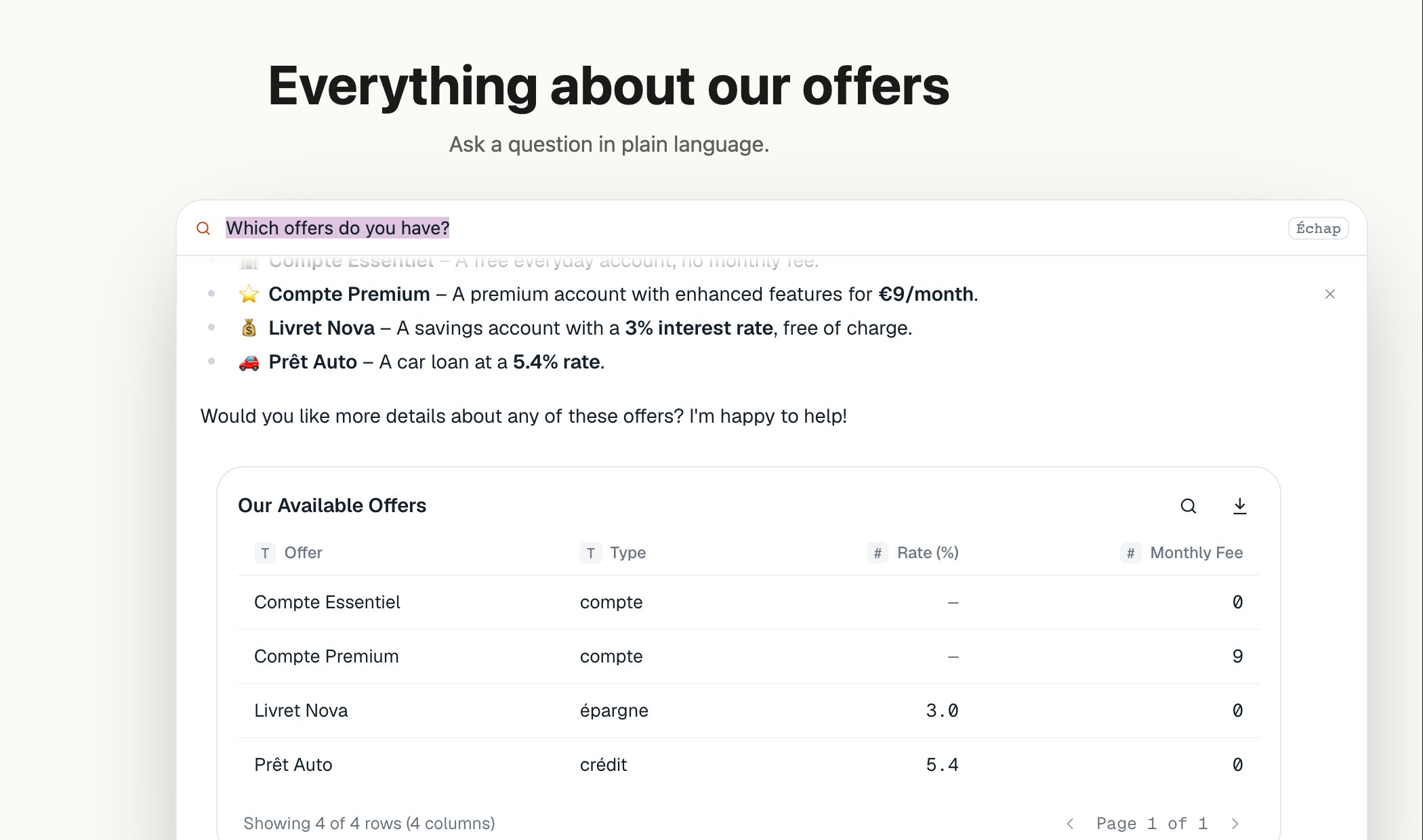
The answer unfolds under the bar. The table comes straight from your database.
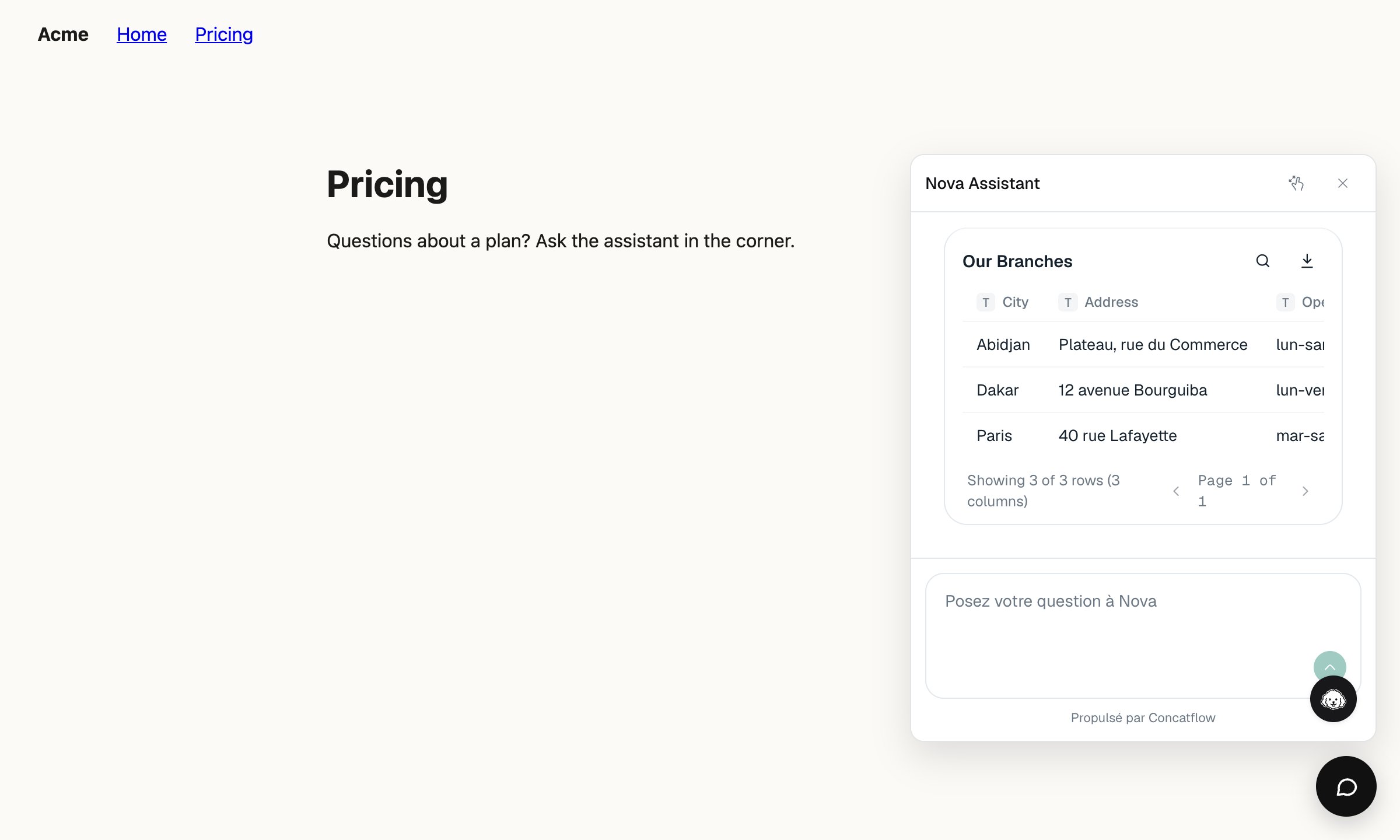
The bubble opens a panel in the corner.
7. Check what visitors cannot see
Ask about something outside the scope, such as a customer’s account or order. The assistant answers that it cannot see that data: on the public door, customer tables are not even in the model’s view.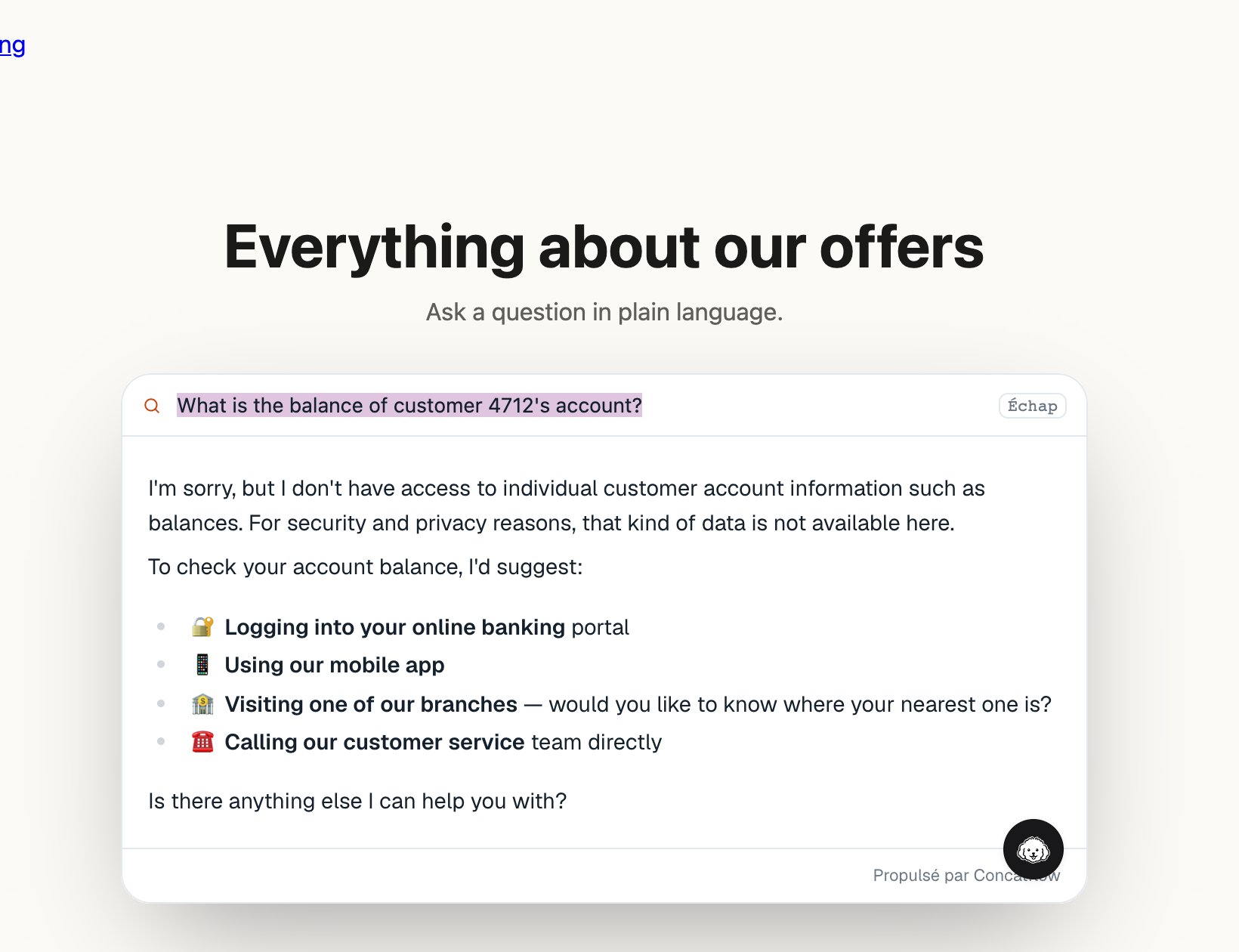
Outside the public scope, the assistant says it has no access.
- Every visitor is anonymous. Concatflow keeps no conversation after the visit. A visitor coming back starts fresh.
- Each question is charged to your workspace. Visitors never sign in and never pay. The Limits tab caps your monthly spend.
- Visitors have limits too. A visitor can ask up to Rate per visitor questions per hour, and 20 questions per visit. When a limit is reached, the assistant answers with a short message instead. That reply costs nothing.
8. Allow Concatflow in your CSP
If your site sends aContent-Security-Policy, allow the Concatflow origin for scripts and frames. In a static site, a <meta> tag at the top of <head> works too:
script-srcloadswidget.js.frame-srcloads the assistant, which runs in an iframe.style-srcneeds'unsafe-inline': the bar’s styles are inline, and so are this page’s.- Your page never calls the Concatflow API, so
connect-srcneeds nothing.
9. Go live
- Deploy the folder to your host.
- In Doors → Allowed origins, add every origin your pages are served from.
https://example.comandhttps://www.example.comare two origins: add both if both serve the site. - Remove
http://localhost:8000. - Check the caps in Limits.
What you built
Each page holds your public site token and loads
widget.js. Nothing else: no key, no server, no build.
Next steps
Per-customer assistant in Next.js
Answer each logged-in customer about their own data.
Bar or bubble
The ⌘K bar, and what each launcher does.
Appearance
Theme, accent colour and placeholder.
<concatflow-assistant>
Every attribute of the element.